Disclosure: Save Image As Type is ours, and this blog is published by the same people. Anything said here about our own software is written by an interested party. One of the three routes below is our own product, so read that section with the scepticism you would apply to anyone describing their own software.
How do you save an image as a PDF?
Three routes, and the right one depends on where the image is. If it is on a web page, a browser extension that adds PDF to the right-click menu produces a one-page PDF in one click, with no upload. If the file is already on your computer, the same extension’s converter page takes it, and so does the preview app that came with your operating system. Online converters handle either, at the cost of sending the image to a server.
What none of the routes is, is the browser’s own Save image as…. That command writes the bytes the server sent and nothing else. There is no format conversion in it at all, which is why there is no PDF option to hunt for. Turning a picture into a PDF means building a document around it, and that is a different job from saving a file.
Why does printing the page give you the page instead of the image?
Because printing renders the document, not the picture inside it. Chrome’s print window does offer Save as PDF as a destination,[2] and pointed at an ordinary web page it does exactly what it says: you get a PDF of the page, with the article text, the navigation, and by default the browser’s own header and footer carrying the URL and the date.
Opening the image in its own tab first gets closer. The browser shows the picture centred on a blank background, and printing that produces a PDF with only the image in it. It is still a printed page, though: paper-sized, with margins, and the image scaled to fit them rather than carried across at its own size. That is fine for a receipt. It is the wrong shape when the thing you wanted was the image.
How do you save a web image as PDF from the right-click menu?
Three steps, and the file is written locally:
- Install Save Image As Type for Chrome, Firefox or Edge
- Right-click the image on the page
- Choose Save Image As Type, then Save as PDF
The PDF is built in the browser from the image the page is already showing. Several extensions add format options to the right-click menu and we compare four of them, including ours.
PDF is offered on every browser, and so is every other format in that menu. Two of them do not come from the browser at all: the PDF is written by the extension itself, and so is the AVIF, because no browser can encode AVIF.
One place it is not offered: the whole-page Save all images as… menu, which downloads every image on a page as one archive, has no PDF entry. That path runs each image through the canvas encoder, and the PDF writer is not part of it. A page of images becomes a folder of JPGs or PNGs, not a folder of PDFs, and not a single PDF with one image per page.
Is the image re-encoded when it becomes a PDF?
Sometimes, and it depends on what the image already was. A PDF’s compression filter for photographs is JPEG: per the PDF specification, the DCTDecode filter “decodes grayscale or colour image data that has been encoded in the JPEG baseline format” (ISO 32000-1, 7.4.8). A JPEG can therefore go into a PDF as it is.[1] Anything that is not a JPEG has to become one first.
That gives two routes through the same menu item:

For a plain JPEG the compressed data is copied into the PDF unchanged, so the picture in the document is bit for bit the picture the site served. No quality setting is consulted, because nothing is encoded. For a PNG, WebP, AVIF, SVG or GIF the image is drawn to a canvas and encoded to JPEG first, at whatever JPG quality you have set, which is 95% unless you changed it.
Two details decide which route an image takes, and both are invisible from the page. A progressive JPEG, the kind that loads in blurry passes, is not embeddable directly and goes the re-encoding route. And if you have the resize limit turned on and it would actually shrink this image, the direct route is skipped on purpose, because taking it would quietly ignore a setting you deliberately turned on.
A PDF can hold a lossless image, and ours does not. The specification offers FlateDecode for exactly that, and this extension’s PDF writer does not use it. Saving a PNG as PDF gives you a JPEG inside a PDF, and transparency is flattened onto white on the way, the same as it would be if you saved that PNG as a JPG. If the pixels matter more than the container, save it as PNG and keep the PNG.
What page size does the PDF get?
The page is the image, by default. One unit of PDF space is 1/72 inch, and the extension maps one image pixel to one unit, so a 1200x800 image becomes a 1200x800 page: full bleed, no margins, nothing cropped and nothing added. On screen that is just the picture. Sent to a printer it is an unusual paper size.
Settings, PDF Page Size, A4 switches to a fixed A4 page instead. The image is scaled to fit inside a half-inch margin and centred on both axes, and it is never enlarged past its own pixel size, so a small image stays small in the middle of the page rather than being blown up to fill it. Pick this one if the PDF is going to a printer or into something that expects paper.
What is actually inside a PDF made from an image?
- One page, sized to the image
- The image data, as a JPEG stream
- No Exif, no GPS, no camera serial
- No text layer and no OCR
- No second image, and no second page
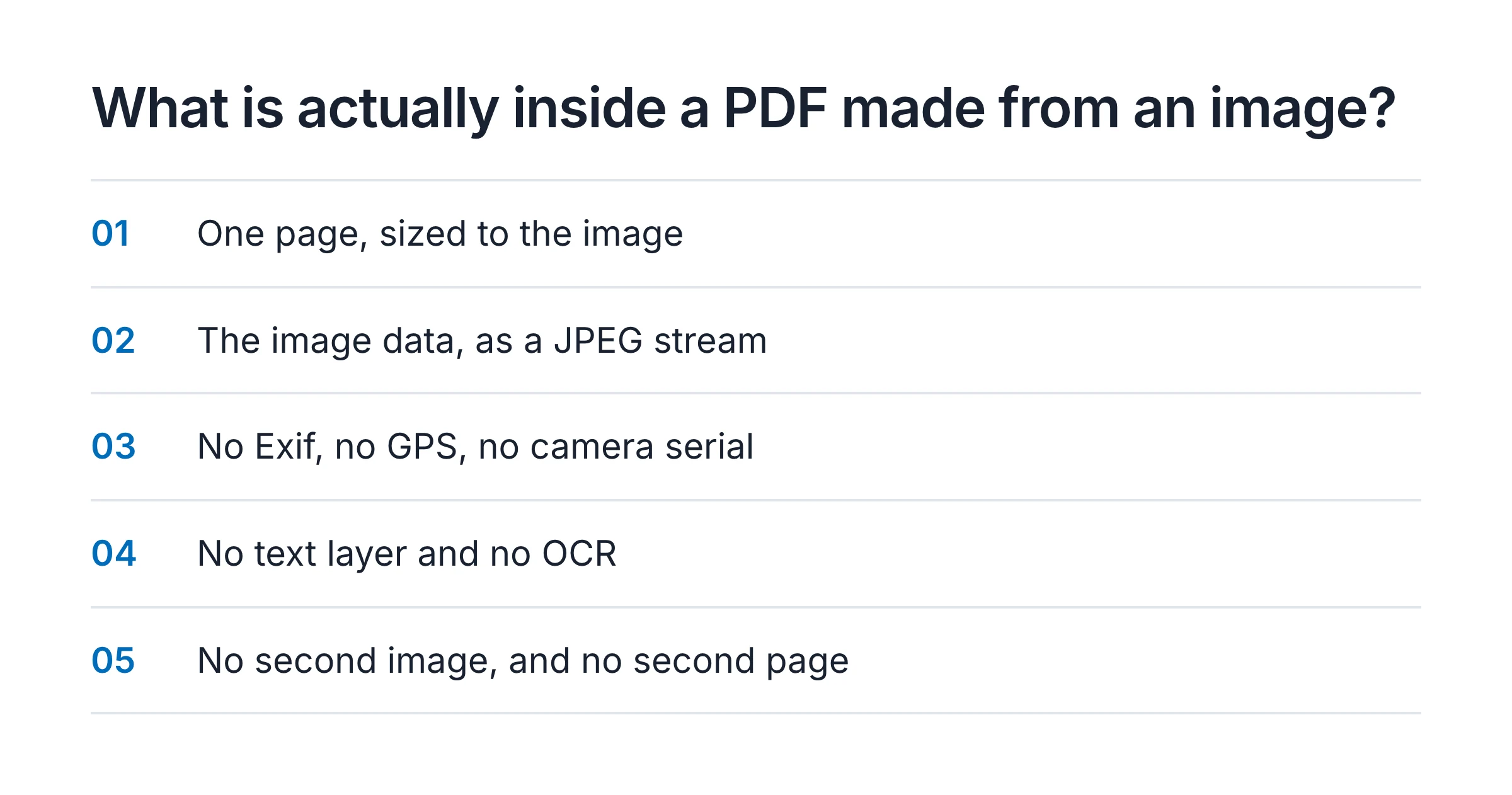
The metadata line is deliberate. A photograph taken on a phone carries Exif, which can include GPS coordinates, the camera’s serial number and a timestamp, and the direct-embed route would carry all of it into a document you then send to someone. Those segments are stripped before the image data goes in. A PDF viewer would not have shown them either way, but recovering them from the file takes one command, so hiding is not the same as removing.
No text layer means the PDF holds a picture of whatever text is in the image. Nothing in it is selectable, searchable or copyable, and no route in this article changes that. If you need the words out of a screenshot, you need optical character recognition, which is a different tool.
What if the image is already a file on your computer?
The right-click menu only reaches images on a page, but the extension is not limited to it. Save Image As Type also has a converter page for files: click its toolbar icon and press Open the file converter, drop the image in, pick PDF and press Convert and save. The file is read and converted in the browser, nothing is uploaded, and a JPEG goes into the PDF untouched here as well. Several files at once come back as a ZIP of one-page PDFs, one per image, not as a single document.
If you would rather install nothing, or you want one PDF with a page per image, use what is already on the machine. Both desktop operating systems ship something that turns an image into a PDF locally, and neither costs anything.
- macOS. Open the image in Preview, then File, then Export as PDF. Selecting several images in Finder and printing them to PDF gives one file with one page per image.
- Windows. Open the image in Photos, press Ctrl+P, and choose Microsoft Print to PDF as the printer.
Online converters such as CloudConvert, Convertio and Zamzar take the file and hand back a PDF, and they work the same on any machine, including one where you cannot install anything. What it costs you is that the image goes to a server you do not control, and the free tiers are metered: CloudConvert’s free plan allows 10 conversion credits a day.[3] For a screenshot of nothing in particular that is a fine trade. For a passport scan it is a decision, not a detail.
Which route should you use?
| Route | Works on | Image leaves your device | What you get |
|---|---|---|---|
| Right-click, Save as PDF | Images on a web page | No | One page, one image |
| Printing the page | Any page | No | The page, with margins |
| The extension’s converter page | Files on disk | No | One PDF per file |
| Preview or Photos | Files on disk | No | One page per file |
| Online converter | Files on disk | Yes | One page, after an upload |
For an image on a page you are looking at, the right-click is the shortest route and it leaves a JPEG’s pixels untouched. For a file already on the disk, the extension’s converter page and the app that shipped with your computer both do it locally. When a stack of photos has to become one document, the built-in app is the one to use, because it puts them in a single PDF. The online converters earn their place in exactly one situation: a file on disk, on a machine where you are not allowed to install software.
Sources
- PDF 32000-1:2008, Document management - Portable document format (Adobe)Primary source
That PDF's DCTDecode filter decodes image data encoded in the JPEG baseline format (7.4.8), that FlateDecode is available as a lossless alternative (Table 6), and that one unit of default user space is 1/72 inch (8.3.2.3).
- Google Chrome Help: Print from ChromePrimary source
That Chrome's print window offers Save as PDF as a print destination. Read .
- CloudConvert pricingPrimary source
That CloudConvert's free plan is metered at 10 conversion credits per day. Read .